Navmark Support and How-To

Getting Started Guide
Use the Star! Click Chrome’s native bookmarking star  (in the upper right hand corner of the URL bar) to bookmark the sites and tabs you want to remember.
Navmark lets you easily organize and find them.

We recommend that you keep your bookmarks in the default “Bookmarks bar” (Chrome) or “Favorites bar” (Edge browser) and in their subfolders.
Chrome Browser Configuration – Important
Navmark must be used in a regular Chrome profile (signed-in or not — both are fine).
Do not use Chrome’s Guest mode. Guest mode clears extension data when Chrome closes, which prevents Navmark from saving your license.
If Chrome says “Guest” in the top-right corner, switch to a regular profile first.
Tip: You can hide the extension name (and gain screen space) at the bottom of the Navmark page by clicking “Customize Chrome” and unselecting “Show footer on New Tab page”.
Navmark Setup –
Pin the Navmark Extension for Quick Access
After installing via the Chrome Store, Navmark opens automatically when you create a new tab with the plus sign. To control how the plus sign works:
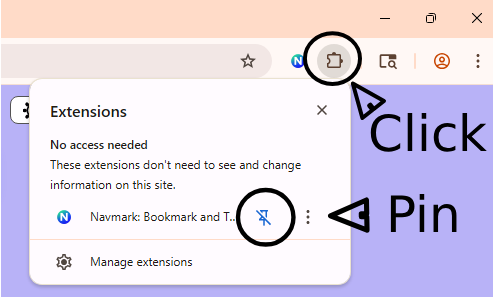
- Click the extensions icon (the puzzle piece) in the Chrome toolbar.
- Find Navmark in the list.
- Click the pin icon next to it.
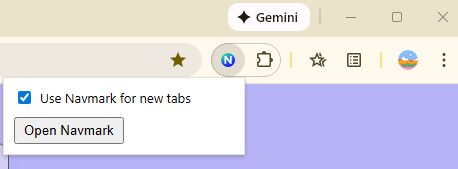
Once pinned, you can click the Navmark icon to toggle between two options:
(1) new tabs use your Navmark page, or
(2) new tabs use the default Chrome New Tab page.
What’s an Extension?!
For best clarity:
Click ⚙️ in the video player and select HD (1080p), or click Watch on YouTube below
Manage Your Tabs – Bookmark them into folders
Method 1 – Save an open tab as a bookmark using the STAR in your browser address bar. Then close that tab. You’ve got it safely stored as a bookmark.
Method 2 – Alternatively, in the Tabs dropdown,  you can also pin
  tabs that you want to keep open.
Once you have pinned the “keepers”, you have several choices for saving tabs and websites permanently.
Method 3 –  Click the Tabs dropdown and use the SAVE button to bookmark any open tab.
Method 4 –  The “Close and SAVE Unpinned Tab(s) in this Window” button closes all unpinned tabs (in the current window only) and saves them into a new, date-labeled folder inside “All Saved Navmark Tabs”. It’s a temporary place where you can review tabs you’ve closed and decide later what you want to keep and what you will discard. This lets you clear tab clutter without fear of losing something important. Tabs in OTHER browser windows are protected and not closed.
“All Saved Navmark Tabs” is created automatically when needed. You may delete this folder at any time if you no longer need its contents. It will be recreated automatically the next time you use “Close & SAVE Unpinned Tabs in this Window”.
Method 5 –  Use the CLOSE button to close one tab.
Method 6 –  The “Close Unpinned Tabs in this Window” button will close unpinned tabs in the current window without saving them. Use it to clear out the tabs you are definitely done with or have already bookmarked. Tabs in OTHER browser windows are protected and not closed.
Create, Organize, and Find Bookmarks
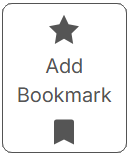
Create a bookmark manually with the Add Bookmark card seen in each folder.
New bookmarks appear next to the Add Bookmark card.
Find existing bookmarks using the search field in the Bookmarks dropdown. 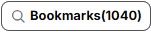
Drag bookmarks to arrange them in your preferred order.
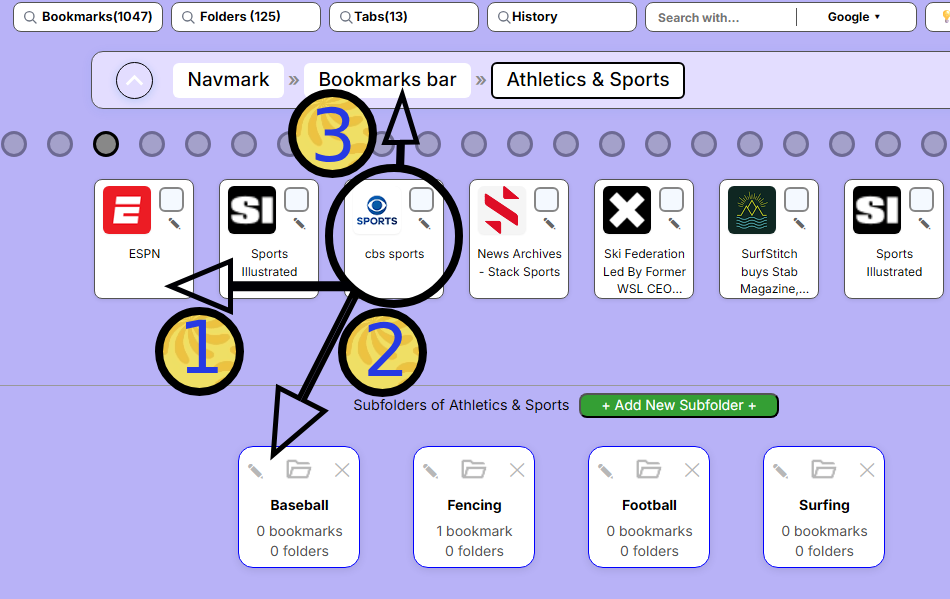
1. Drag a bookmark (“cbs sports”) to a new location (“ESPN” position) in the current folder (Athletics & Sports).
2. Drag a bookmark to a subfolder (Baseball).
3. Drag a bookmark UP to a folder in the breadcrumb trail (Bookmarks bar).
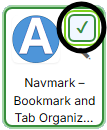
Checkmark bookmarks to select them for group move, open, or delete.
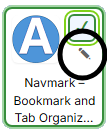
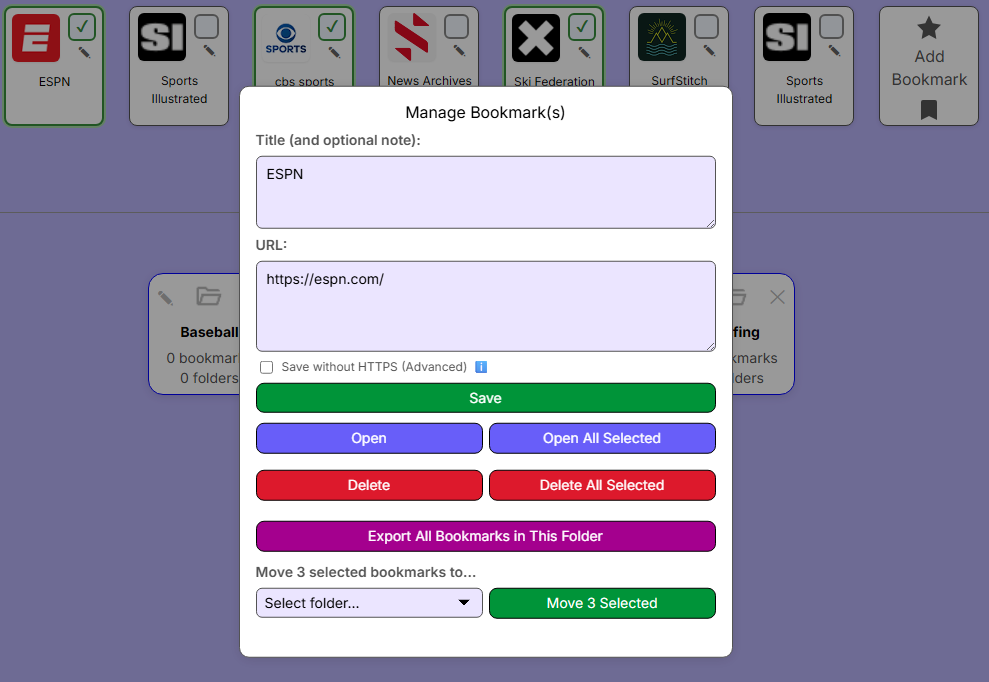
Click the stylus pencil ✎ or right-click on a bookmark to edit or move bookmarks in the Bookmark Manager.
Click the stylus pencil ✎ or right-click on a bookmark to edit or move bookmarks in the Bookmark Manager.
Create Folders and
Put Bookmarks and Subfolders in Them
Create subfolders as needed with the green + Add New Subfolder + button. 
Folders are always in alphanumeric order. Change their titles to change their order.
Just like Bookmarks, you can drag folders DOWN into other folders or UP into a folder in the breadcrumb trail.
Search for folders by name with the Folders dropdown. 
Recent Websites Search
Did you close a tab you wanted to keep open or bookmark? Use the Recent websites search  to recover the last 500 website URLs you have visited.
Search the Web with Five Search Engines
 Select a search engine, enter your search term, and hit return.
About Discovery
 Navmark Discovery lets you send selected bookmarks to an AI/LLM service provider (such as ChatGPT or Perplexity) when you explicitly choose to do so. With Discovery you can leverage your bookmark collections to find new websites, new information, and new connections.
- Click the Discover button to leverage your existing website collections (URLs in folders) to find new websites and information sources.
- Use the file selector to choose the folder / bookmark collection that will guide the LLM response.
- Edit the prompt instruction and the website URLs, staying within the character limit for each LLM service.
- Send your query to Perplexity or ChatGPT.
We provide a suggested prompt, but you can edit the prompt and the bookmarks before you share any information with the LLM service provider.
If at first you don’t get the response you are looking for, ask the LLM more questions about the area you are researching. The responses will be guided by the websites you choose to share.
About Chrome Sync
If you have turned on Chrome Sync and are logged into Chrome, the bookmarks and folders you create will also be mirrored in any other Chrome browsers where you are logged in.
Note: The bookmarks are mirrored, but the order you set for bookmarks within a folder will not be mirrored on a different device or browser.
Tip: Navmark cannot be installed on a phone, but it will display the Chrome bookmarks you create on your phone’s synced Chrome browser.
Power Keys
Ctrl T – Open Navmark (when Navmark is default new tab option)
Escape Key – Clear search strings
Up and Down Arrows – Move through dropdowns
Enter or Return – Select an item in a dropdown
Tab – Cycle forward through five Navmark Pro search options
Shift-Tab – Cycle backwards through five Navmark Pro search options
Right-Click a Page to bookmark the page or a selected link, or search for a selected text.
Set Chrome Browser to
“Continue where you left off”
Go to Settings –> On startup –> Continue where you left off
This is the usual default setting for most users, but can be set if it is not your default setting for overall ease of use.
Pinned tabs will remain pinned even when you close the browser.
Open tabs will remain open even when you close the browser.
Import Your Existing Bookmarks
to Chrome or Edge
Do you already have a bookmark collection in Safari, Firefox, or other browser? Here’s a quick guide to importing your bookmarks into Navmark in Chrome or Edge.
Import to Chrome Browser
1) Import bookmarks from Firefox, Edge, or another Chromium browser into Chrome
- Open Chrome.
- Open Bookmarks → Import bookmarks and settings.
- Choose Firefox, Edge, or another browser from the list.
- Select Bookmarks and click Import.
2) Import bookmarks from Safari into Chrome
- In Safari, choose File → Export Bookmarks… and save the file.
- Open Chrome.
- Open Bookmarks → Bookmark Manager → Import Bookmarks.
- Select the exported HTML file and click Open.
Import to Edge Browser
3) Import bookmarks from Chrome, Firefox, or another Chromium browser into Edge
- Open Edge.
- Open Settings → Profiles → Import browser data.
- Choose Chrome, Firefox, or another browser from the list.
- Select Bookmarks and click Import.
4) Import bookmarks from Safari into Edge
- In Safari, choose File → Export Bookmarks… and save the file.
- Open Edge.
- Open Settings → Profiles → Import browser data → Import from file.
- Select the exported HTML file and click Open.
Five Useful Navmark Tricks
- Bookmark an email in Gmail, Outlook, or other online email.
- Bookmark a Google Drive document, and save it in a place that makes sense in your organizational scheme.
- Bookmark a file location on your local hard drive.
- Add search terms or notes to a bookmark’s title. Everything in your title notes is findable (in the search bar) and readable (in the Bookmark Manager, with a right-click on the bookmark.)
- Export a folder. Create a collection for sharing. Maybe you’ve collected some links to share with friends. Maybe you have some employee onboarding links. Make a collection in a folder, export them (right-click on any bookmark in a folder), and drop them in an email when you are ready to share them.
Navmark Pro License and Navmark Free
After the Navmark Pro free trial ends, the app automatically switches to Navmark Free. To continue using Pro features (Search, Discovery, and advanced tools), you can purchase a Navmark Pro license at any time.
Navmark Free always remains available for core bookmark and folder management.
How do I get and activate a Navmark Pro license?
- Purchase a license using our secure payment provider, Lemon Squeezy
- You’ll receive an email with your license key
- Open Navmark → Settings & How-To
- Paste in your license key and email address
That’s it — Navmark Pro will activate immediately and the trial banner will disappear.
How does Navmark Pro licensing work?
- Navmark Pro is activated per browser installation
- One license can be used on up to five installations
- The limit uses a rolling 30-day window
- Installations you stop using automatically drop off over time
Each browser profile and computer counts as a separate installation.
What if I don’t purchase a license?
You can continue using Navmark Free, which includes:
- Bookmarking and folder creation
- Drag-and-drop organization
- Edit, move, and export tools